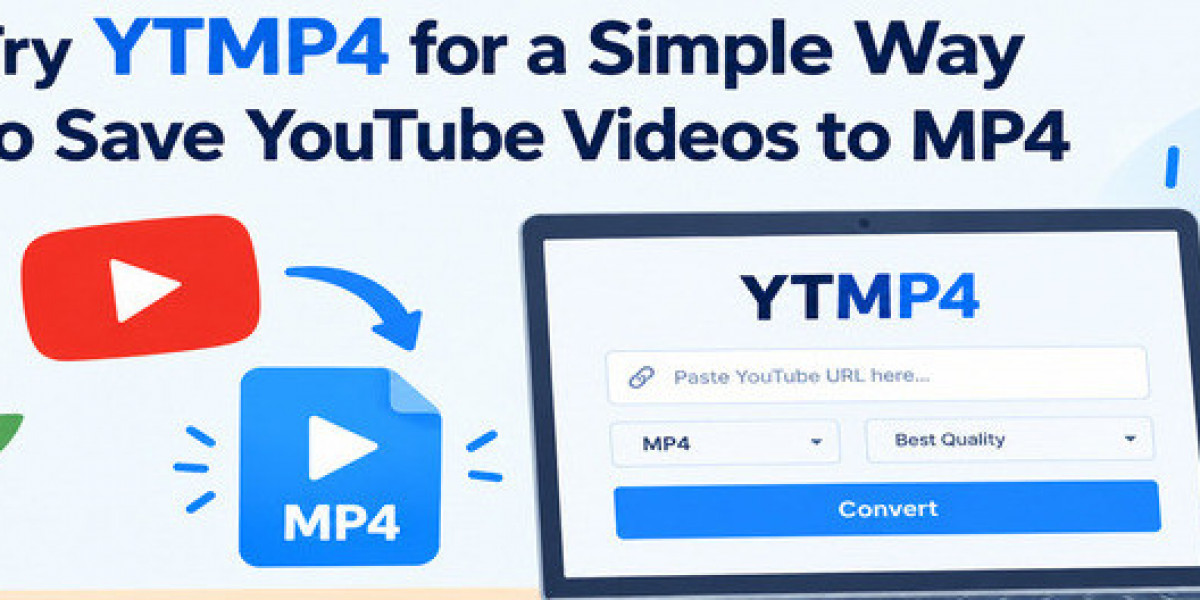

You open a YouTube video on a slow internet connection, get halfway through, and the YouTube video starts buffering. Or you find a lecture that explains something you have struggled with for weeks, and you know you will want it again next Sunday. Moments like these are why many people search for a way to keep a YouTube video as a copy on their device.
MP4 is the safest, and most people choose it because it plays on almost every phone, laptop, tablet, and TV without extra apps. An online converter such as YTMP4 lets you paste a video link and get an MP4 file. YouTube to MP4 is convenient if you only need it occasionally and don’t want to install other software. Before you try the YT MP4 tool, a few practical points you should know.
Why Try YTMP4 Once?
Trying a YouTube MP4 downloader once is a simple way to see whether this workflow suits you. There’s nothing to install, and the main action is clear: paste the link, choose the format and quality, and download. That is useful if you do not want to learn complicated software settings for a single video.
It can also change how you choose what to watch. Instead of asking only “Do I want to watch this now?”, you start asking “Will I need this again?” That second question is what separates a useful video library from a cluttered one.
Check Whether You’re Allowed to Save the Video
Before you use any YouTube to MP4 converter, make sure you have the right to save the video. Saving is generally fine in these cases:
- Videos are uploaded by you
- Videos the creator has said you can download
- Public-domain videos (no copyright applies)
- Creative Commons videos (on YouTube, search for your topic, then go to Filters, then Features, then Creative Commons)
For everything else, the safer route is YouTube’s own offline feature, available to Premium subscribers inside the app. YouTube’s terms generally don’t allow you to download YouTube to MP4 outside its official features, so respect each creator’s rights and keep saved copies for personal reference only.
Pick a Resolution That Matches Your Screen and Storage
Higher quality isn’t always better when you use a YouTube to MP4 converter. These are rough estimates, and real sizes vary from video to video:
Resolution | Approx. size per minute | Best for |
360p | 2-3 MB | Phones, limited storage, talk-based lectures |
480p | 3-5 MB | Small screens, long tutorials |
720p | 6-10 MB | Laptops, tutorials with small on-screen text |
MP4 or MP3: Which One Do You Need?
If you need only spoken content such as podcasts, interviews, videos, or talks, an MP3 audio file is much smaller and easier to carry around.
Choose YouTube MP4 when the visuals matter, such as software walkthroughs, exercise routines, cooking steps, diagrams or drawing lessons.
Asking this one question first can save a lot of storage.
A Quick Checklist Before You Convert YouTube to MP4
- Confirm you have the right to save the YouTube video.
- Decide whether you’ll realistically watch it again. If not, skip it.
- Choose a resolution that fits your device and free space.
- Rename the file clearly, for example, excel-pivot-tables-tutorial.mp4, so you can find it later.
- Sort files into topic folders and delete the ones you no longer need.
Be Careful With YouTube MP4 Converter Sites
Not every YouTube MP4 converter site is trustworthy. If any MP4 downloader forces software installs, shows aggressive pop-ups, or asks for personal details, avoid those sites. A good converter should only need a link, show clear options, and give you the file without extra steps. If you are unsure about a downloaded file, scan it with your device’s security software before opening it.
Keep Fewer, Better Videos
It’s easy to save everything and end up with a folder full of videos you never open. Before you convert YouTube to MP4, ask yourself one simple question: “Will I actually need this again?”
Worth keeping:
- A tutorial that explains a process you’re still learning
- A lecture or class you may want to revise before an exam
- Step-by-step guides, such as recipes, repairs, or software walkthroughs
- Videos you want to watch where internet access is weak, such as during travel
Usually not worth keeping:
- A random video you watched once for fun
- News or trending clips that will be outdated in a few days
- Videos you can easily find again on YouTube anytime
Think of your saved videos as a small reference shelf, not a storage room. A handful of useful MP4 files you actually watch is better than hundreds you forget about.
Final Thoughts
Saving a YouTube video as an MP4 can help with learning, travel, or places where internet access is unreliable, as long as you have permission and a clear reason. If you’ve never tried a converter before, start with one video you genuinely need, pick a sensible resolution, and keep your collection small and organised. That way, every file you save has a purpose.